Automating Price-File Intake: Email, FTP and URL Feeds
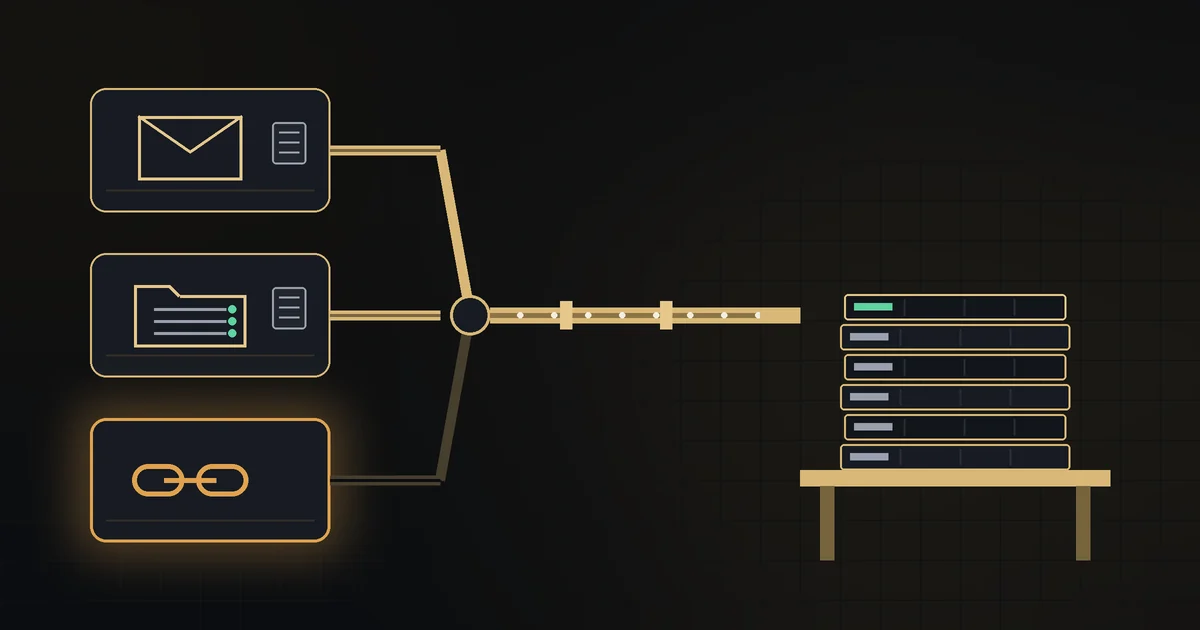
Handling a supplier price file mostly means fetching it, saving it, checking it is the file you think it is and getting it into the sheet or tool that compares it with last time. The analysis is the short part. When a supplier sends a file once a quarter, doing that by hand is fine. When one supplier publishes a daily feed and another drops a weekly CSV on an FTP server, the manual routine stops happening and nobody notices for a while. Below is a small, boring setup for automating price-file intake, with notes on which steps should stay manual.
How files arrive and what each channel lets you automate
Suppliers deliver price data in one of a few ways. Each can be automated to a different degree:
| Channel | Typical cadence | What can be automated | Main risk |
|---|---|---|---|
| Email attachment | Monthly or ad hoc | A mail rule that saves attachments from known senders to a folder | A new sender, a zipped file or a link instead of an attachment |
| FTP or SFTP drop | Weekly or daily | A scheduled job that downloads new files | The same filename overwritten every time, so "new" is hard to detect |
| URL feed | Daily | A scheduled download of a fixed address | The feed returns an error page or an empty file and the job saves it anyway |
| Portal download | Whenever you log in | Usually nothing; it stays manual | Nobody logs in |
Take a store with four suppliers. Acme emails a spreadsheet roughly once a month. Northline puts a CSV of 4,902 lines on an FTP server every Monday. Midwest publishes a 318-line feed at a fixed URL every business day. A fourth supplier only offers a download behind a login. That comes to about 1 + 4 + 22 = 27 automatable files a month, plus one manual download.
The pipeline in five stages
Whatever the channel, the steps after the file arrives are the same. Keep them separate so a failure in one is visible and doesn't silently corrupt the next.
- Fetch. Get the file from the mailbox, server or URL into a landing folder. This stage does nothing else.
- Archive the raw file. Copy it, unmodified, under a name that carries the supplier and the date received, using the same naming rule as in the manual price-file process. Nothing downstream ever edits this copy.
- Fingerprint. Compute a hash of the file (SHA-256 is the common choice) and compare it with the hash of the last file from that supplier. Identical hash means identical content: log "no change" and stop. This is how you handle an FTP server that overwrites
prices.csvevery week, and a daily feed that is unchanged most days. - Validate. Run a few cheap checks before anyone trusts the content (next section).
- Hand off. Only a file that passed validation goes on to normalisation and the diff against the previous version. The diff itself is a separate step, covered in reading a supplier price list.
Archive before validating, because a file that fails validation is exactly the one you will want to show the supplier later. Fingerprint before validating, because most scheduled fetches bring nothing new and there is no point checking the same file again.
Validation: the checks that catch a broken file
A person who opens a half-empty spreadsheet notices; a script just saves it. Four checks catch most of the damage:
- Check that it is the right kind of file. A feed URL that returns an HTML login page still "downloads" without errors. Check that the first row contains the column headers you expect.
- Check that the row count is plausible against the last good file. Northline normally sends 4,902 lines; a Monday file with 2,451 lines is a 50% drop. A supplier dropping half its catalogue in a week is possible, but a truncated export is far more likely. Hold anything that moves more than a set percentage. 10% is a reasonable starting point for a stable catalogue.
- Check that the columns haven't moved. If the price column used to be the fourth and is now the fifth, every number in the diff will be wrong while looking perfectly valid. Compare the header row with the last good file's header row exactly.
- Check the share of changed prices. Midwest's daily feed usually changes a handful of its 318 lines. A day where 290 lines change (91%) is more likely a basis change, such as list price instead of net, or a currency switch, than 290 genuine price moves. Hold it and look.
A held file goes to a person, and often on to the supplier, before any of its numbers reach your costs.
Alerting when no file arrives
Every check above runs on a file that arrived. The more common failure is that nothing arrives. The supplier changes the FTP password, the feed URL moves, the sales rep who sent the monthly spreadsheet leaves. The automation runs, finds nothing and has nothing to complain about.
So give each supplier an expected cadence and alert on silence:
| Supplier | Expected | Alert if nothing new after |
|---|---|---|
| Midwest (URL feed) | Every business day | 3 business days |
| Northline (FTP) | Every Monday | 10 days |
| Acme (email) | About monthly | 45 days |
| Portal supplier | Manual | A calendar reminder, monthly |
Count only files with a new fingerprint as new. A daily feed that returns identical content for three weeks is worth a question too, because it may mean the supplier's export job has stopped while their web server still serves the old file.
What it saves, and what it doesn't
Say a manual intake takes 15 minutes per file: find it, save it, rename it, open it, sanity-check it, log it. For the 27 files above that is 27 × 15 = 405 minutes, or 6.75 hours a month. With the pipeline in place, a person only looks at held files and silence alerts. If that is three files a month at 20 minutes each, intake drops to an hour. In practice the bigger gain is that the daily feed actually gets processed every day instead of whenever someone has a free afternoon, so a price rise is caught days after it starts rather than weeks.
What automation does not remove:
- Someone still decides whether a 50% row drop is a truncated export or a real catalogue change.
- If the portal supplier's only route is a login and a download button, scraping it is fragile and may breach the supplier's terms. Keep it manual and put it on the calendar.
- Deciding what to do about a cost rise is still the work described in the five-step response to a price increase.
Doing it with free tools first
None of this needs special software to start. A mail rule that files attachments from known senders into a folder handles the email channel. A scheduled script (cron on a Linux box or Task Scheduler on Windows) can download from an FTP server or a URL, write the raw file into a dated archive folder, compute a hash and append a line to the intake log. The checks are a few comparisons against the last good file. The limits show up as the supplier count grows: each new supplier means new column mappings, new thresholds and another script to keep running, and a script that fails without telling anyone needs a silence alert of its own.
CostSentry covers the email channel and the stages after the file is in hand: you upload a supplier's CSV or Excel price list, or forward that supplier's price emails to the import address CostSentry gives each supplier, and it matches the lines to your Shopify catalogue by SKU, compares them with the previous list and alerts you about cost rises, discontinued items and margins below your floor. Fetching from FTP or a URL stays on your side, and the archive and silence checks above are worth having either way.
See how your supplier file lines up
Drop in your Shopify product export and a supplier CSV, see which SKUs match and which now fall below your target margin. Free, no account.
Open the free checker ↗