Keeping a Cost History for Shopify from CSV Exports
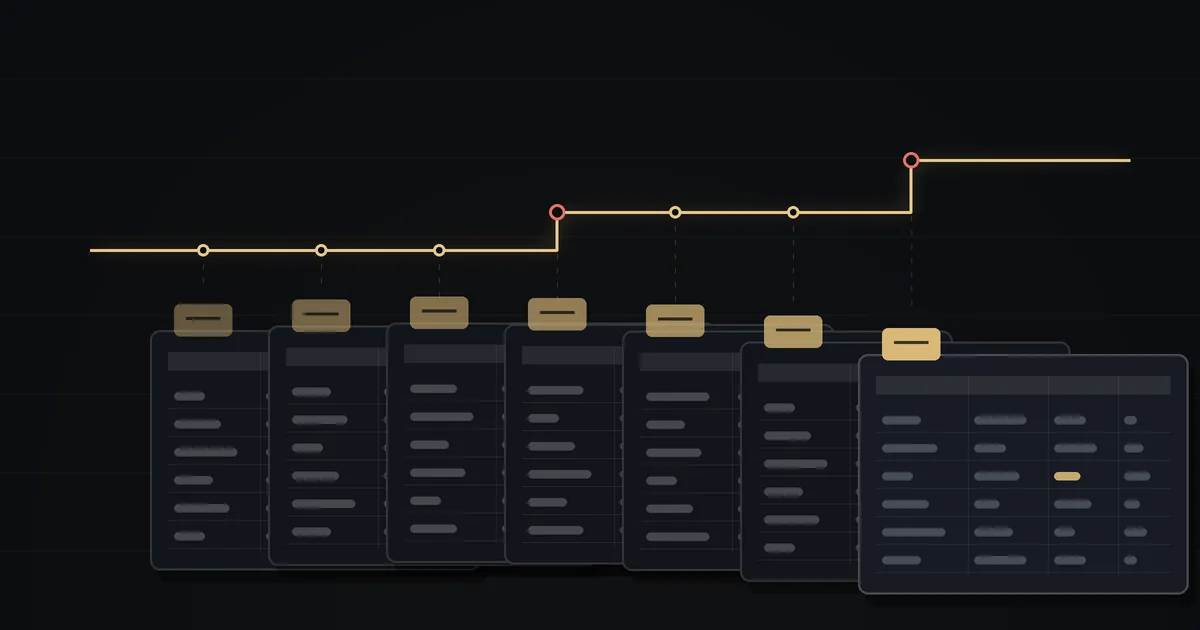
Shopify keeps one cost per variant and forgets the old one the moment you change it. If you want to know what a SKU cost in March, or when its margin started slipping, you have to keep that record yourself. The cheapest way is a folder of dated product exports and a spreadsheet that stacks them. You need no app, and once it is set up it takes about twenty minutes a month.
What to export, and when
The standard product export (Products → Export, all products, CSV) already has what you need. Out of its many columns, keep four:
- Variant SKU, the key everything else hangs on;
- Cost per item, the number Shopify forgets;
- Variant Price, so you see margin and not just cost;
- Handle, for tracing a variant back to its product. It can't be the key, because one handle covers several variants.
When you export decides what the history can prove. Take a snapshot before and after every cost import, plus one on the first of each month as a baseline. The before-and-after pair shows exactly what a given import changed, and the monthly one catches edits made by hand in the admin. If you already follow a routine like the one in From Inbox Chaos to a Price-File Process, the export becomes the first and last step of each intake.
Folder and naming rules
A year from now you will need to find the right file without guessing. These rules make that possible:
- Use one name pattern:
products_2026-04-01_monthly.csv,products_2026-04-14_before-supplierA.csv,products_2026-04-14_after-supplierA.csv. The date comes right after the prefix, in year-month-day order, so the files sort themselves. - Never edit an export. Copy it into the working sheet and leave the raw file as Shopify produced it. If something needs fixing, fix it in the sheet and leave a note.
- Write one log line per file: date, reason, who exported it, and the supplier file it relates to. A plain text file in the same folder is enough.
Building the history sheet
Create one long table with five columns: snapshot_date, sku, cost, price, note. Each export adds a block of rows under the previous one. You can paste by hand or use a query tool that appends every file in the folder. Either way, the table only grows downward.
To compare two snapshots, put the newer one in a sheet with SKU in column A and cost in column C, and pull the older cost next to it:
=VLOOKUP(A2, Prev!A:C, 3, FALSE)Then the change and the margin at current retail:
Cost change % = (new cost - old cost) / old cost
Margin %      = (price - cost) / price
A #N/A from the lookup means the SKU wasn't in the older snapshot. It is either a new item or a renamed SKU, and you want to know which, so keep those rows visible.
A worked example: three SKUs, four snapshots
Here is the stacked history for three items across four monthly exports:
| SKU | Jan 1 | Feb 1 | Mar 1 | Apr 1 | Retail |
|---|---|---|---|---|---|
| HX-1040 | 6.00 | 6.00 | 7.20 | 7.20 | 12.00 |
| VL-2210 | 18.50 | 18.50 | 18.50 | 19.98 | 29.00 |
| KT-0007 | 3.10 | 3.10 | (blank) | (blank) | 7.50 |
- HX-1040 went from 6.00 to 7.20 between the February and March snapshots, a 20% rise. At 12.00 retail its margin fell from 50.0% to 40.0%. That month's before-and-after pair tells you which import did it.
- VL-2210 rose 8.0%, from 18.50 to 19.98. Its margin at 29.00 went from 36.2% to 31.1%, so a rise of 1.48 per unit took more than five points of margin.
- KT-0007's cost went blank in March. That happens when an import file has an empty cost cell for the row. Shopify's profit report now treats the item as if it cost nothing and shows a 100% margin. The history still has the last real cost, 3.10, so you can put it back.
The blank cost is the case you would almost never catch otherwise. The import traps that cause it are covered in How to Bulk Update Cost per Item in Shopify.
Rules that keep the history honest
- Open exports with the SKU column as text. Spreadsheets strip leading zeros and turn long numeric part numbers into scientific notation, so a SKU like 000731 becomes 731 and stops matching.
- Treat blank and zero differently. Blank means unknown, and zero is usually a mistake. Flag both and leave them out of any averages.
- Check for duplicate SKUs before every comparison. VLOOKUP returns the first match and ignores the rest without warning.
- Add an alias column when a SKU is renamed. Without it the chain breaks, and the item looks discontinued and replaced.
- For any change over a few percent, write the reason in the note column: supplier increase, freight change, correction. You won't remember it six months later.
Where the DIY approach stops
The snapshots record what Shopify had in the cost field. If nobody updated cost per item, the history shows a flat line while the supplier's price went up. Resolution is limited by your schedule too: two changes between monthly snapshots look like one.
File size is rarely the problem. A catalogue of 5,000 SKUs exported weekly adds 260,000 rows a year, well inside a spreadsheet's limit of just over a million rows. The harder part is discipline. Someone has to take the exports on time, every time, and the routine tends to lapse in the busy months when prices move most.
For a store with a few hundred SKUs and one or two suppliers, the folder and the lookup are usually enough, and they make the quarterly price review much faster. With a bigger catalogue or more suppliers, CostSentry can keep the history instead. It builds it from the supplier price lists themselves, matched by SKU, and flags rises, drops and margin breaches as each new list arrives. Why the single cost field isn't enough on its own is covered in Shopify's Cost per Item: One Number, No History.
Check your last export against the new price list
Drop in your Shopify product export and a supplier CSV, see which SKUs match and which now fall below your target margin. Free, no account.
Open the free checker ↗